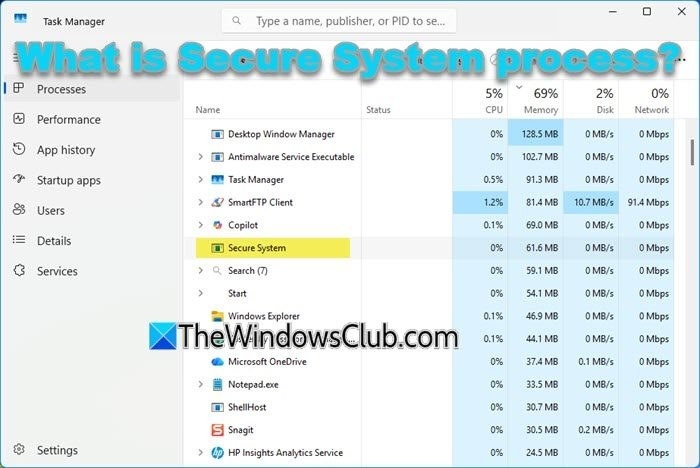
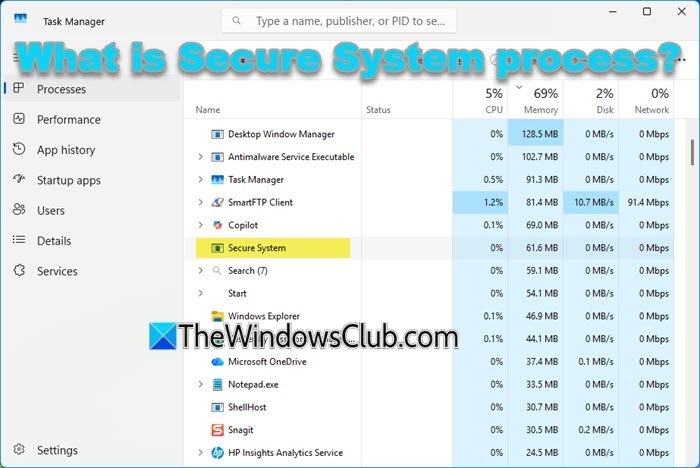
Secure System may appear in Windows 11 Task Manager as a background process, sometimes with noticeable resource usage. It is a built-in security component, not an unfamiliar program you need to remove.
What Secure System Does
Windows creates Secure System as part of its virtualization-based protections to isolate sensitive operations from threats. Its location is C:\Windows\System32.
Virtualization lets a computer create a separate environment where tasks can run independently of the rest of the system. Although it is often used to run multiple operating systems on one machine, Windows also uses it for security.
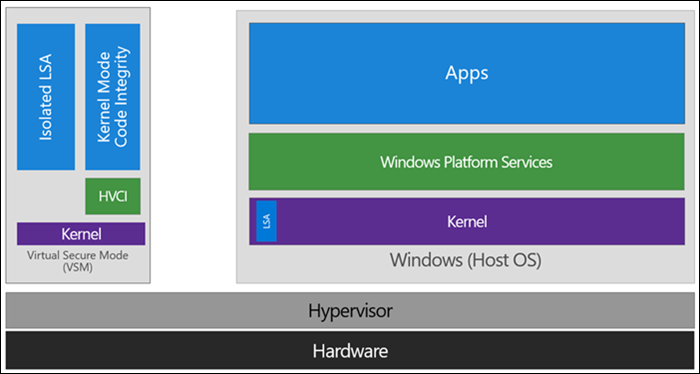
Virtualization-Based Security (VBS) establishes a protected area in memory called Virtual Secure Mode (VSM). Separate from the main operating system, VSM provides an isolated place for critical security operations.
The Secure System entry in Task Manager indicates that this environment is active. It appears when certain protections are enabled, particularly features under Core Isolation, including Memory Integrity, also called Hypervisor-Protected Code Integrity (HVCI).
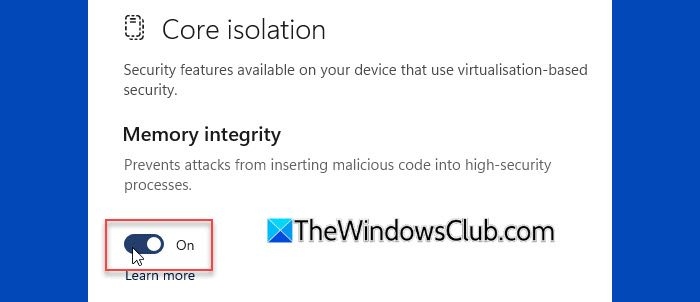
With Memory Integrity enabled, Windows uses VBS to ensure that only trusted code and drivers run in the system. The isolated VSM environment supporting this protection appears as Secure System in Task Manager.
Is the Process Safe?
Secure System is a legitimate part of Windows security, not a virus. To check it, right-click the process in Task Manager and select Properties. You may see an association with core Windows components such as ntoskrnl.exe (Windows NT Kernel & System) and a Microsoft digital signature, confirming its legitimacy.
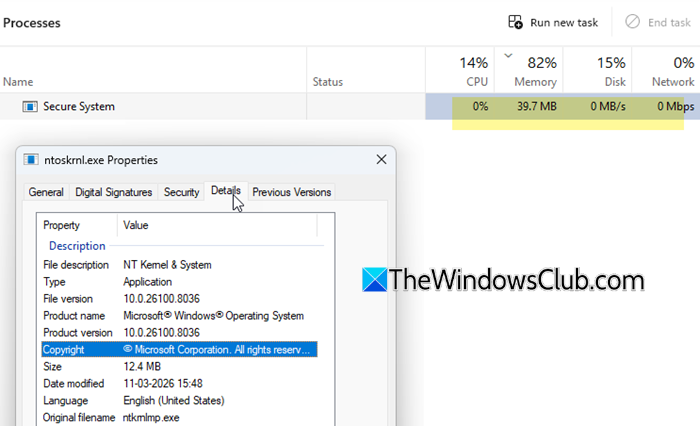
Why It Uses Memory
VSM requires dedicated RAM for sensitive data and security checks. Much of that memory keeps the protected environment available rather than supporting visible, ongoing tasks. CPU usage therefore usually stays at 0%, with no disk or network activity.
Memory consumption of around 100–300 MB is generally considered normal.
Should You Disable Secure System?
Generally, leave it enabled. Its purpose is to protect important operations by isolating them. Stopping it requires disabling Memory Integrity (Core Isolation) or other virtualization-based protections, leaving the system more vulnerable to attacks.
You cannot disable the process directly. If necessary, follow these steps to turn off Memory Integrity:
- Open Windows Security > Device Security > Core Isolation > Memory Integrity.
- Toggle Memory Integrity off.
- Restart your PC.
This reduces protection against advanced threats, so make the change only when necessary.
How It Fits Into Windows 11 Security
Windows 11 combines built-in protections such as Secure Boot, TPM 2.0, and virtualization-based security with hardware-backed defenses against malware, ransomware, and unauthorized access. Memory Integrity and Credential Guard add further protection. Overall, Windows 11 offers stronger default security than earlier Windows versions.