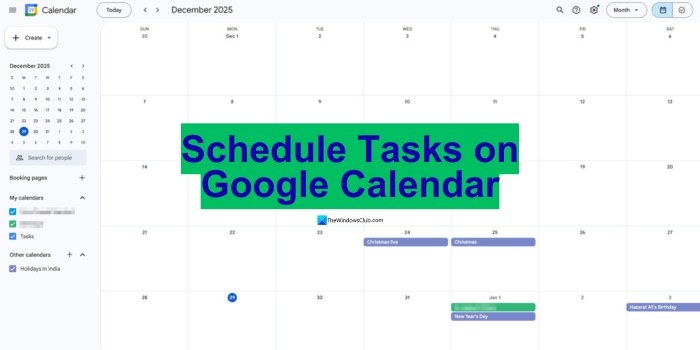
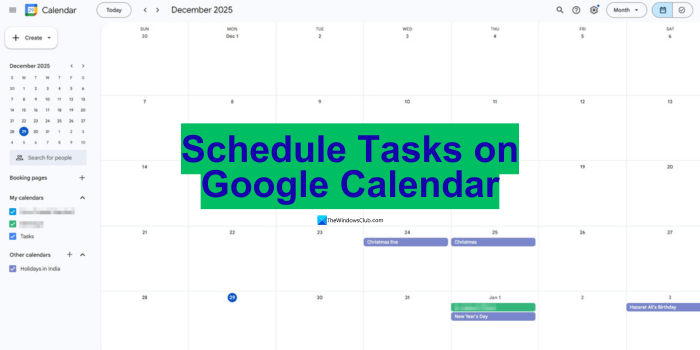
Google Calendar lets you plan tasks and receive phone reminders to help keep track of them. It is widely used on Android phones, where it comes preinstalled. Here is how to create scheduled tasks and manage them afterward.
Schedule a Task
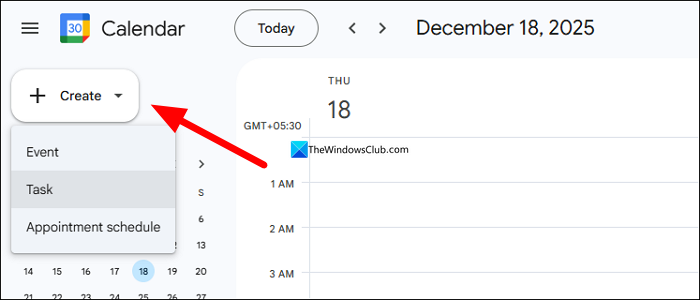
- Open the desired date in Google Calendar to display its hourly schedule, then click an hour. A pop-up offers an Event, Task, or Appointment schedule.
- Enter a task name and select Task.
- Adjust the date and time as needed. Click the date and time information to view recurrence options. Choose daily, weekly, monthly, annually, weekdays, or a custom frequency if the task repeats.
- Add a deadline, select the category for the task, and click Save.
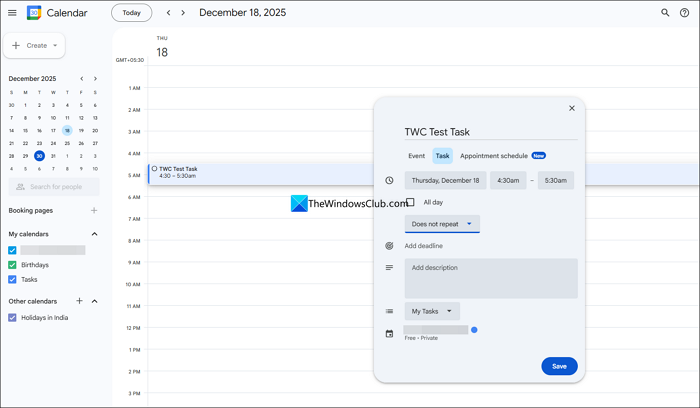
The saved task appears on your calendar. Alternatively, click Create and select Task to begin.
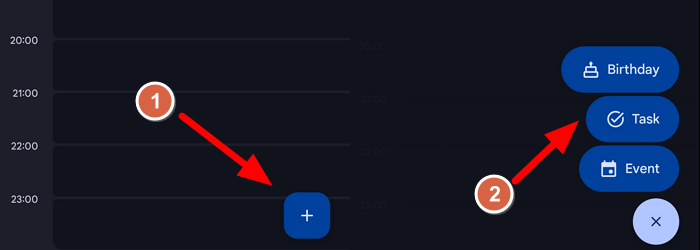
In the smartphone Google Calendar app, tap the + icon at the bottom right, then select Task.
Change a Task’s Schedule or Deadline
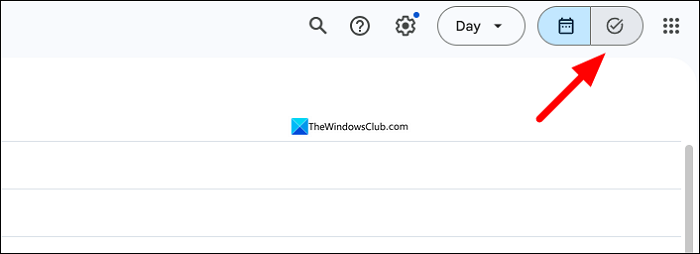
- Click the Task complete icon at the top-right of the Google Calendar page to switch to Tasks.
- From the displayed list of created and scheduled tasks, click the one you want to change.
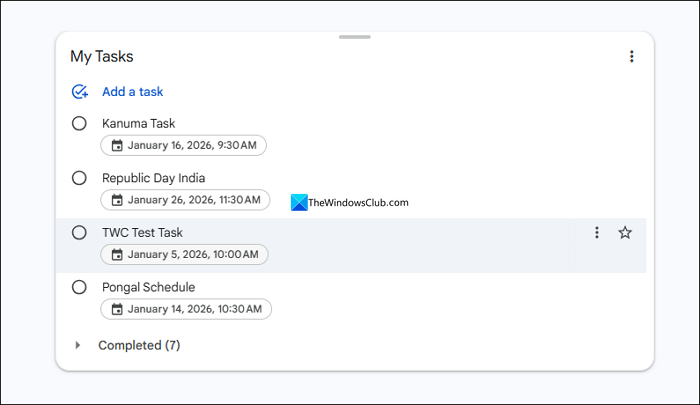
- Adjust its date, time, or frequency, then click Done to save.
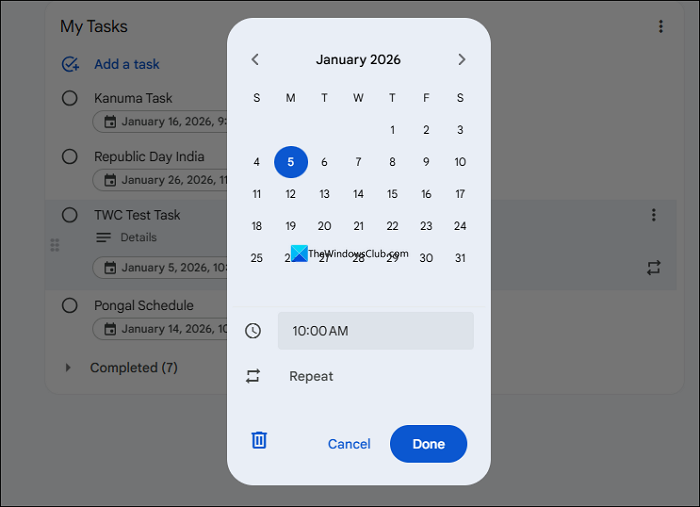
To change the title or make additional changes, you can create another task.
Mark a Task Complete
You can complete a task from either the calendar or My Tasks:
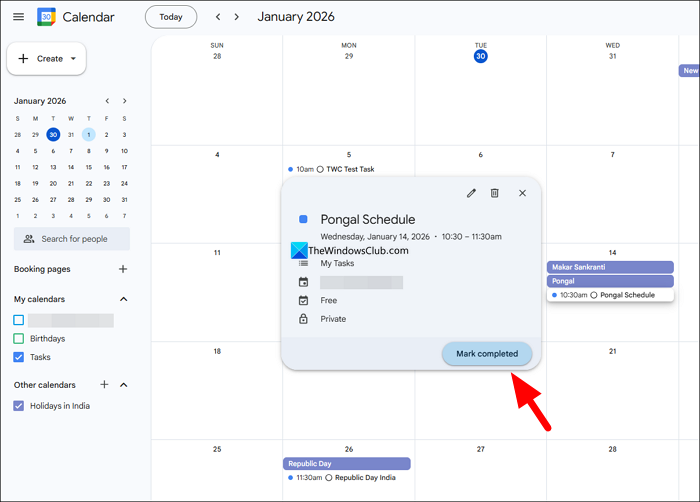
- From the calendar: Go to the task, click its displayed time and name to open the details, then click Mark completed.
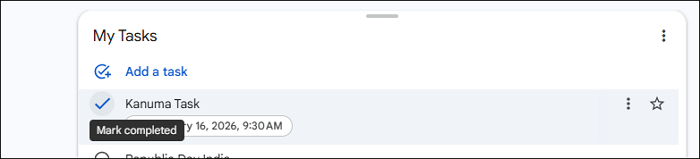
- From My Tasks: Open the My Tasks page and hover over the task. Click the circle containing a tick mark beside its name.
Delete a Task
Tasks can also be removed from either view:
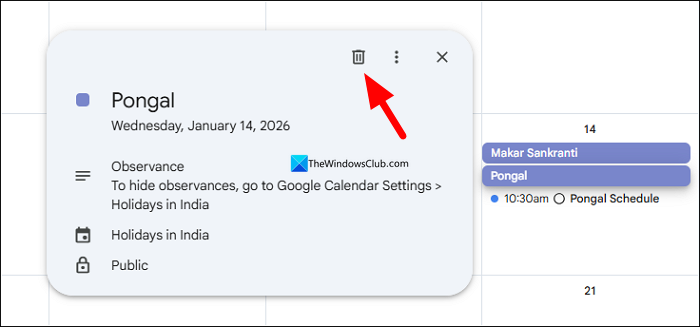
- From the calendar: Find and click the task in Google Calendar. In its details pop-up, click the Delete icon.
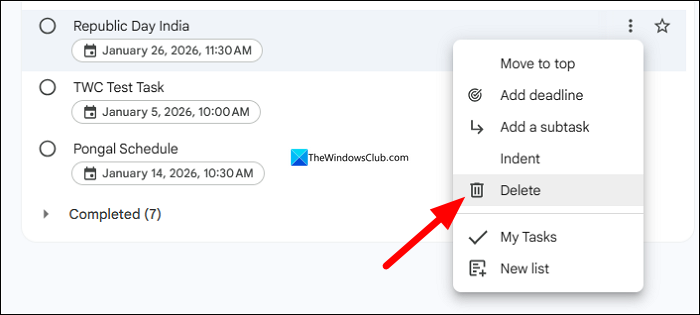
- From My Tasks: Switch to Tasks in Google Calendar, click the three-dot icon beside the task, and select Delete.
Find Pending and Completed Tasks
Click Switch to tasks in Google Calendar to open My Tasks. The tasks shown there are generally pending; select Completed to view finished items.
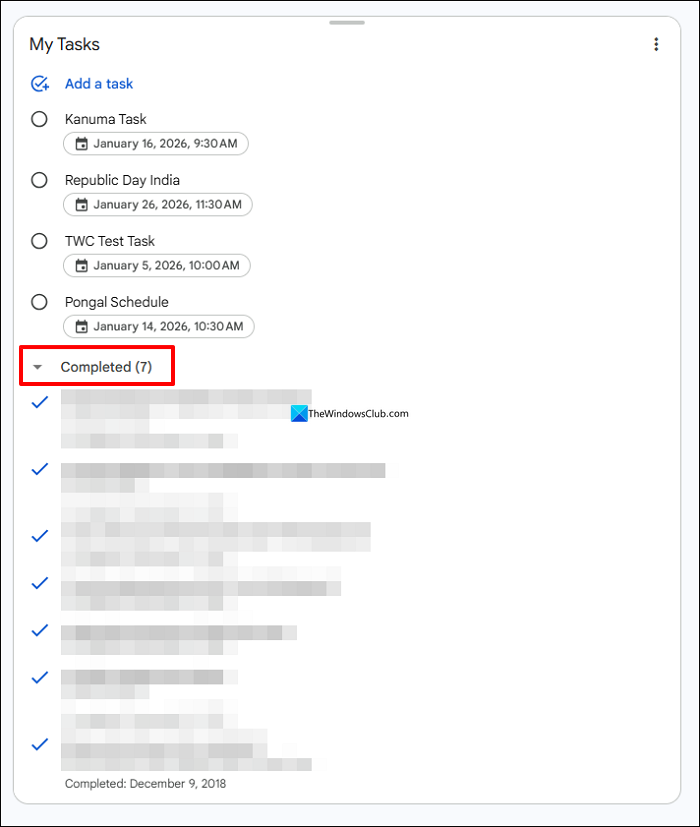
Marking a task complete automatically moves it into the Completed section.
Choose Between Tasks and Events
Google Calendar supports events, tasks, and appointments. To schedule an activity, open its date, click an hour in the timeline, enter a title, and select the appropriate type—Event, Task, or an Appointment. Fill in the required details and click Save.
Use Tasks for to-do items that need completion reminders, and Events for important dates you need to attend. For activities involving other people, such as family or work meetings, schedule an Event with their Google accounts so it is added automatically to their calendars and they can receive reminders.