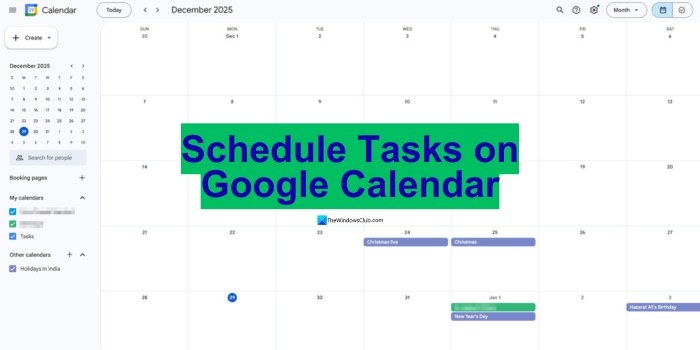

Client calls, deadlines, and administrative work can fill a day without leaving enough room for meaningful progress. Time blocking gives freelancers, students, and busy professionals a way to reserve time for focused work, meetings, and personal commitments rather than responding to whatever comes next.
How Time Blocking Works
Time blocking divides your day into scheduled periods, each reserved for one task or a group of related activities. Instead of keeping an open-ended to-do list, you place work directly in Google Calendar. Focusing on one activity at a time helps limit distractions and multitasking.
A calendar-history aside: the ancient Egyptians recognized that a year was not exactly 365 days and added five extra days to their calendar. They also had a leap-year concept before Julius Caesar made it official.
Set Up Time Blocking in Google Calendar
Step #1: List your tasks and decide what comes first
Write down your work assignments, personal commitments, and recurring activities before allocating time. To establish priorities, use a method such as the Eisenhower Matrix, which separates tasks into four categories:
- Urgent and important
- Important but not urgent
- Urgent but not important
- Neither urgent nor important
Step #2: Reserve time for each task
- Open Google Calendar on the web or in the mobile app. If you use multiple accounts, check that you are signed into the correct one.
- Select the desired time slot or click "Create".
- Enter a descriptive task title, such as writing a project proposal or creating a pitch deck, and specify its start and end times.
Allow realistic amounts of time so the day does not become overloaded. For activities such as weekly planning or workouts, use recurring events. Historical records from a time-tracking tool such as Toggl can help you estimate how long similar work takes.
Step #3: Distinguish activities with colors
Assign different colors to work, personal tasks, and meetings so you can quickly read your schedule. Select an event, open "Edit", and choose a color. For example, use blue for work, green for personal activities, and yellow for meetings.
Alternatively, create separate work and personal calendars with their own colors. You can also control who can see an event.
Step #4: Add reminders for your blocks
- When creating an event, add a reminder 10 minutes before it begins to give yourself time to transition. Important tasks can have multiple reminders.
- Turn on phone notifications to receive updates while away from your computer.
- Connect Google Assistant if you want voice reminders for upcoming blocks.
Consider reserving 30 minutes each morning to plan and another 30 minutes each evening to review the day. During that review, place relevant notes, links, or checklists in event descriptions to keep supporting information together.
Step #5: Refine your schedule as you go
Review your calendar at the end of each week. Check whether tasks took longer than expected or interruptions disrupted your plans, then adjust future blocks accordingly.
Move blocks when priorities change. If an unexpected commitment interrupts a task, reschedule its block rather than deleting it.
In the web version of Google Calendar, press "C" to create an event, "D" for day view, or "W" for week view.
Where Google Calendar Time Blocking Falls Short
Google Calendar can give your day structure, but maintaining that structure involves several tradeoffs:
- Limited flexibility: Inaccurate estimates, overrunning tasks, and unexpected issues can disrupt planned blocks.
- Multiple-calendar complications: Synchronization and privacy management across several calendars can cause delays or missed events.
- Ongoing setup work: Building and maintaining blocks can become time-consuming, particularly for recurring work or frequently changing schedules.
- No recurring priority-based automation: You cannot automatically reserve 90 minutes for deep work at the beginning of each day only when nothing urgent is scheduled.
- No automatic buffer logic: You must manually leave space between meetings or tasks for context switching.
Google Calendar also lacks built-in time tracking and intelligent prioritization, leaving you to rearrange blocks manually.
Another calendar aside: weekdays take their names from gods and celestial bodies. Tuesday refers to Tiw, the Anglo-Saxon god of war, while Thursday honors Thor, the Norse god of thunder.
ClickUp as an Alternative for Time Blocking
ClickUp combines project management, documentation, and team communication with AI and automation. Its Time Management tools offer a task-connected approach to scheduling for people who need more than calendar events.
ClickUp Calendar
ClickUp Calendar connects scheduled time with the work behind it. Its features include:
- AI-powered time blocking: Schedule priority tasks around estimates, deadlines, and availability. With ClickUp Brain, it can automatically schedule your day in seconds.
- Direct task scheduling: Drag tasks from your LineUp, backlog, or overdue list onto the calendar.
- Views and filters: Filter by team member, priority, or task status, and switch between a detailed daily view and a weekly overview.
ClickUp Tasks
Use ClickUp Tasks to separate work projects, personal time, and study sessions. Select a calendar slot, schedule the task, and attach the files or notes it needs.
You can also arrange meetings, invite participants, and join video calls from your workspace.
ClickUp AI Notetaker
ClickUp AI Notetaker automatically records key points and action items from meetings. It captures decisions for sharing with attendees and non-attendees, assigns action items to the appropriate people, and connects discussions to relevant tasks and files so the team retains context.
ClickUp Brain
ClickUp Brain lets you manage events through requests. For example, you can ask it to schedule a product-team call next Friday at 2 PM, find all events with Alex this month, or create a private focus block tomorrow at 9 AM. It supports both public and private event visibility.
In a ClickUp survey, 35% of respondents identified Monday as their least productive day, while 50% chose Friday as their most productive. ClickUp presents its time-blocking, automation, and AI scheduling tools as ways to improve efficiency.
ClickUp Scheduling Templates
ClickUp offers more than 1,000 templates, including options for planning time without building a schedule from scratch.
- ClickUp Daily Time Blocking Template: Organize high-priority work during productive hours and set aside less urgent tasks or distracting thoughts. Time estimates and built-in time tracking help you judge daily capacity, while movement breaks support wellness. Daily, Weekly, and Monthly planner views and Custom Fields help categorize and access tasks.
- ClickUp Schedule Blocking Template: Plan schedules, understand task dependencies, and organize task blocks.
- ClickUp Hourly Schedule Template: Define goals and priorities, create a flexible but structured timeline, and track progress against daily objectives.
Techniques to Make Time Blocking More Effective
A calendar works best with a clear approach to how you use its blocks. These methods provide different ways to organize focused time:
- Task batching: Group similar activities to reduce mental switching. For example, answer email in one 30-minute block instead of checking it throughout the day.
- Day theming: Reserve entire days for particular types of work, such as content creation on Mondays, meetings on Wednesdays, and strategy on Fridays.
- Timeboxing: Give a task a fixed duration—for example, exactly 90 minutes to draft a presentation.
- Pomodoro technique: Alternate 25 minutes of work with a 5-minute break to maintain focus without burning out.
- Parkinson’s law: Use tight deadlines to prevent work from expanding unnecessarily. Allow a strict 2-hour window for a report rather than the whole day.
- Task and habit pairing: Attach a scheduled activity to an existing routine, such as beginning deep work immediately after morning coffee.
- A distraction-free environment: Silence notifications and use apps such as Forest or Freedom to block distractions.
Google Calendar offers a straightforward way to structure work and personal time. For those seeking task-connected scheduling, built-in time tracking, and more automation, ClickUp adds drag-and-drop planning and AI tools within a single workspace.