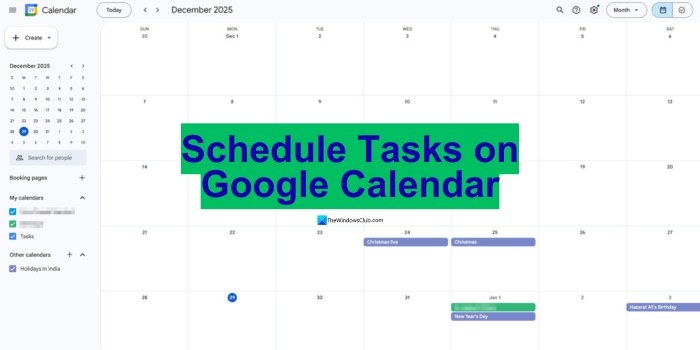
When work appointments live in Google Calendar but your Apple devices default to Apple Calendar, keeping track of both can lead to missed updates or overlapping commitments. Connecting them puts your schedules in one view and reduces the need to switch apps.
What connecting the calendars offers
- A combined schedule: See work, personal, and shared Google Calendar events together across your Apple devices.
- Access across devices: Check appointments, make updates, and block time from a Mac, iPhone, iPad, or Apple Watch without logging into Google.
- Automatic updates: Changes from Google Calendar and online meeting tools appear in Apple Calendar without re-entering appointments.
- Native reminders: Use Apple’s notification system for consistent event alerts.
- Easier coordination: Shared schedules help organize the day and keep meeting times clear when working across time zones.
A template for weekly planning
Google’s weekly calendar can cover routine planning, but managing multiple clients, a large team, or complex projects calls for more. The ClickUp Weekly Calendar Template supports task and deadline management alongside real-time planning for events and meetings. ClickUp also combines calendar integration, task management, and AI-assisted scheduling.
How to connect Google Calendar with Apple Calendar
Follow this sequence to set up the connection on a Mac. The iPhone and iPad account setup path is included below.
Launch Apple Calendar on your Mac
Open the Calendar app from the Dock or Applications folder. You will add your Google account here so its updates appear automatically, without removing your existing Apple events.
Find the account settings
In the top menu bar, select “Calendar” to open Calendar’s Preferences, then choose “Accounts” at the top of the settings box. The Internet Accounts settings should appear, where you can add external calendars.
Connect your Google account
In the Accounts window, select the “+” button at the bottom left, then choose “Google”. Enter your Google email and password in the sign-in window and follow the prompts to authorize access.
On an iPhone or iPad, use Settings > Calendar > Accounts > Add Account > Google instead. Sign in, then make sure the Calendar toggle is on after authentication.
Turn on calendar syncing
After signing in, you will see sync options including Mail, Contacts, and Calendars. Check “Calendars”; if you only want calendar events, uncheck the other options. Select “Done” to complete setup.
Review the connected calendars
Return to Apple Calendar. Your Google Calendar events should appear in the left sidebar and update in real time without a manual refresh. You can also open the Calendar sync page and check or uncheck calendar names to control which ones sync.
Note: Depending on your system’s fetch settings, new Google Calendar events may take a few minutes to appear in Apple Calendar.
Adjust the calendar display
Once syncing is set up, customize the view on your iPhone. Rename calendars, give them different colors, or choose which appear by default to distinguish work commitments from personal events.
Calendar trivia: The 📅 emoji shows July 17 because Apple introduced iCal on that date in 2002. The date also appears in the app icon.
Where Google-to-Apple calendar syncing falls short
The connection is convenient, but it does not bring every Google Calendar feature into Apple Calendar. Keep these restrictions in mind before relying on it:
- No email reminders: Apple Calendar cannot set email notifications for Google Calendar events.
- No new Google calendars: You can view and edit existing Google Calendar events from Apple’s default calendar after syncing, but creating a new Google calendar requires opening Google Calendar directly.
- No Room Scheduler or resource booking: These Google Calendar features are unavailable through Apple Calendar.
- Limited reverse syncing with iCloud: Bringing Google Calendar into Apple’s ecosystem is possible, but syncing iCloud Calendar back to Google is less straightforward.
- Possible delays: Newly created Google Calendar events may not appear immediately.
- Restricted administration: Sharing settings and advanced Google Calendar features must be managed in Google Calendar itself.
- Template restrictions: New Google Calendar templates cannot be used directly in Apple Calendar unless they were used before connecting the apps. Access them in Google Calendar, then let the changes sync to Apple Calendar.
Device trivia: An iPhone has over 100,000 times the processing power of the computer used to land people on the moon. Its RAM capacity is 1,048,576 times that of the Apollo computer.
ClickUp as an alternative for calendars and work planning
Google-to-Apple syncing provides a combined schedule, but feature gaps, delays, the lack of email notifications, and incomplete two-way flexibility remain drawbacks. ClickUp offers another approach: bringing calendars, tasks, projects, and meetings into one workspace, with Google Calendar and Outlook integrations.
Manage schedules alongside projects
Google Calendar and Apple Calendar help visualize daily commitments; ClickUp Calendar also supports team projects and more extensive planning. It combines multiple calendars with tasks, deadlines, and appointments. ClickUp integrates with 1,000+ apps, supporting connections with calendars and scheduling tools.
Use two-way Google Calendar integration
Unlike Apple Calendar’s limited two-way flexibility, ClickUp Calendar offers two-way integration with Google Calendar. Changes in Google Calendar appear instantly in ClickUp, and changes in ClickUp are reflected in Google Calendar.
You can select the calendars to sync, the task lists to include, and how updates are handled. This reduces manual duplication while keeping project work and appointments connected.
Connect meetings, tasks, and follow-up work
ClickUp Calendar brings personal tasks, work projects, team deadlines, and meetings into one place. Meeting links can be embedded in scheduled time blocks, and you can join calls directly from the calendar through MS Teams, Google Meet, Zoom, and other services.
If you enable ClickUp AI Notetaker for calendar events, it generates post-meeting transcripts with speaker identification and highlighted action items. Those action items can automatically become ClickUp Tasks, which you can assign to yourself or teammates.
Monthly, weekly, and daily planner templates provide starting points for organizing appointments, tasks, and deadlines.
Digital calendar use: 70% of people primarily manage their lives with a digital calendar: 46.7% mainly use a mobile calendar, while 23.3% favor a desktop calendar.
Plan with AI assistance
ClickUp Brain helps find suitable times for meetings and appointments to avoid double bookings. It also lets you review schedules and connect tasks to particular calendar events.
You can ask it for meeting summaries, task-progress updates, or help identifying workflow issues. Its answers provide contextual data, including where a topic appeared previously and why it was mentioned. These capabilities support prioritization and schedule adjustments across a team.
Support end-of-day routines
According to ClickUp’s insight, 26% of workers disconnect through hobbies or workouts, while 22% use end-of-day rituals such as shutting their laptops at a fixed time or changing out of work clothes at home. Yet 30% still struggle to switch off mentally.
ClickUp Reminders can provide a daily wrap-up alert. AI standups can automatically update teammates on completed work, while ClickUp Brain can help review essential tasks each day. Lulu Press reports saving 1 hour per employee per day with ClickUp Automations, resulting in a 12% improvement in work efficiency.
Apple history: Apple’s original logo depicted Isaac Newton sitting beneath a tree, with an apple hanging above him as though about to fall on his head.
Choose between a connected calendar and a broader workspace
Connecting Google Calendar to Apple Calendar is a useful way to view commitments together, provided you can work within its feature restrictions and occasional delays. For planning that also includes projects and follow-up work, ClickUp combines two-way Google Calendar syncing, Outlook integration, AI-assisted scheduling, and task management in one workspace.