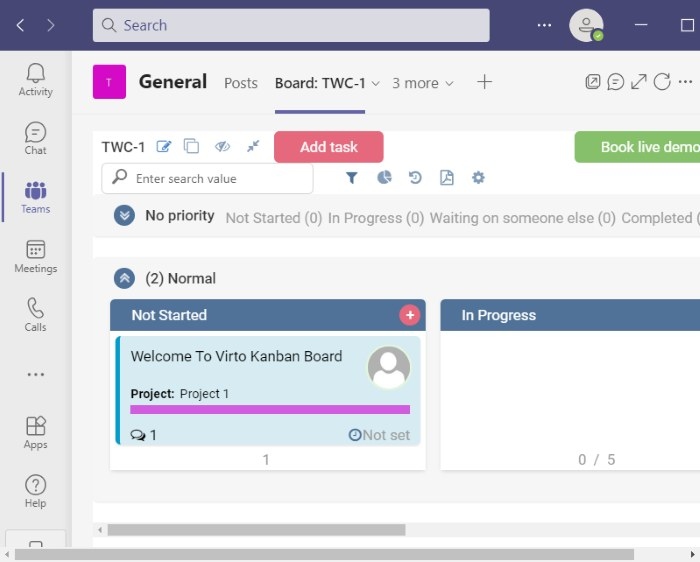
A Kanban board helps visualize, track, and manage project tasks. Cards can organize work into categories such as In Progress, Not Started, Completed, Pending, and High Priority Task.
Microsoft Teams has a native feature, but the method below uses an additional free app, Virto Kanban Board, available from the Teams Apps section. Setup involves installing the app in Teams and SharePoint, creating a board, and adding it as a Teams tab.
Install and configure Virto Kanban Board
Open Microsoft Teams and sign in. Select Apps, enter Virto kanban in the search box, and choose Virto Kanban Board from the results.
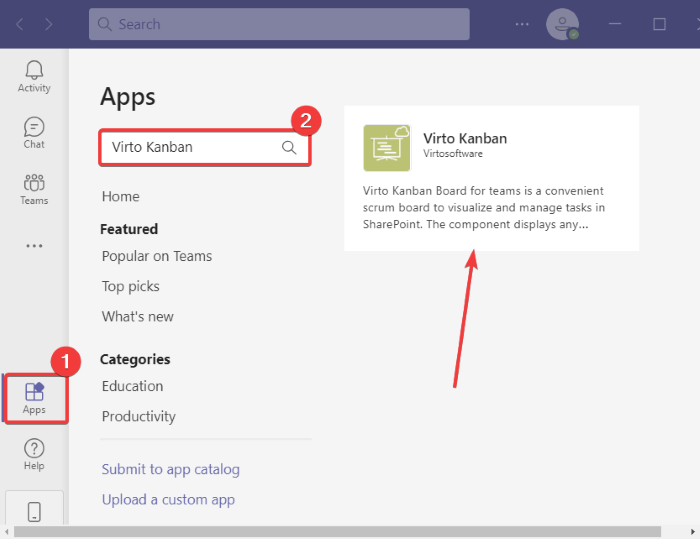
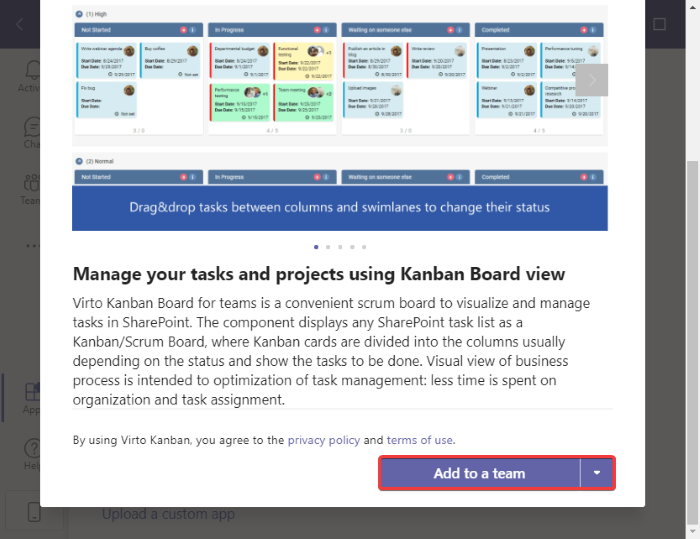
Review the app details and select Add to a team. Alternatively, use the drop-down button to add the board to a specific chat.
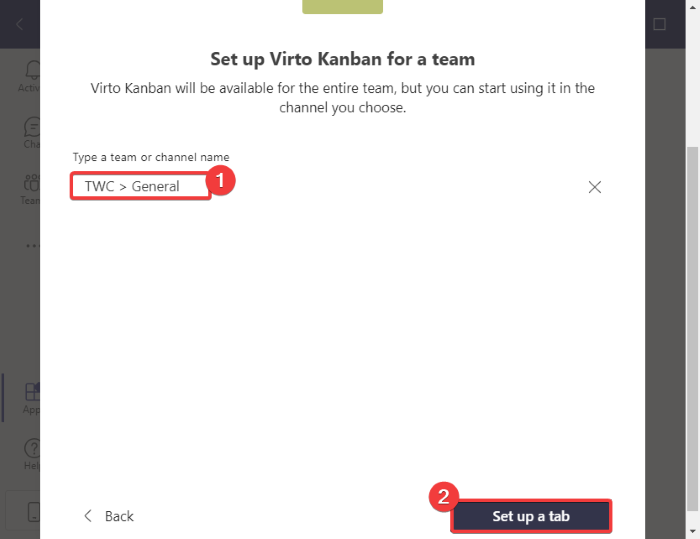
Enter the destination team or channel name, then select Set up a tab.
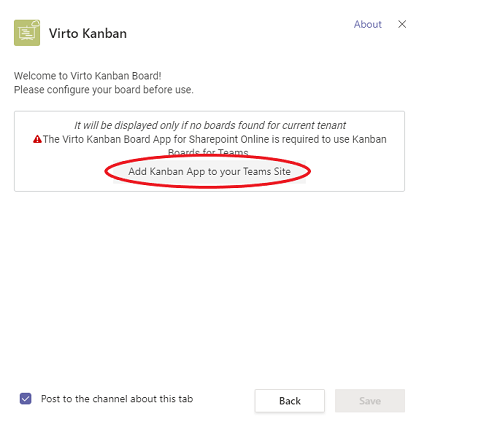
At the next prompt, select Add Kanban App to your Teams Site. The SharePoint store will open in your default browser.
Search the SharePoint Store for Virto Kanban Board.
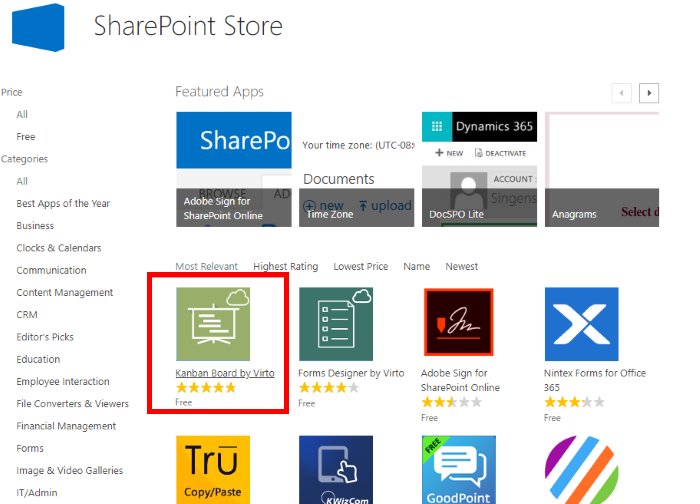
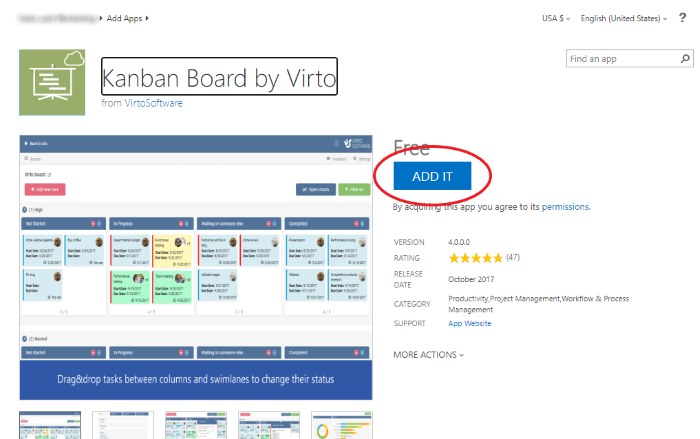
Select ADD IT to add the app to your account. You will need to sign in to your Microsoft account.
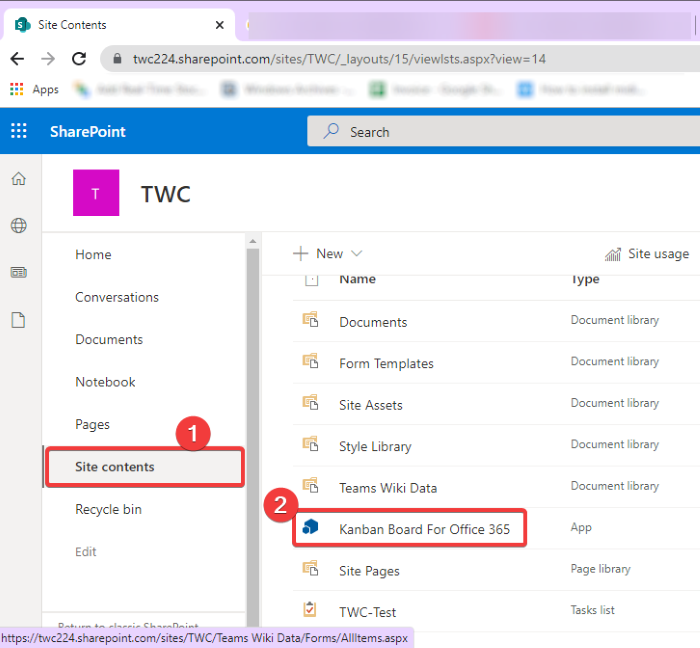
On the SharePoint website, create a site and open the Site Contents folder. Select Kanban Board for Office 365 on the right.
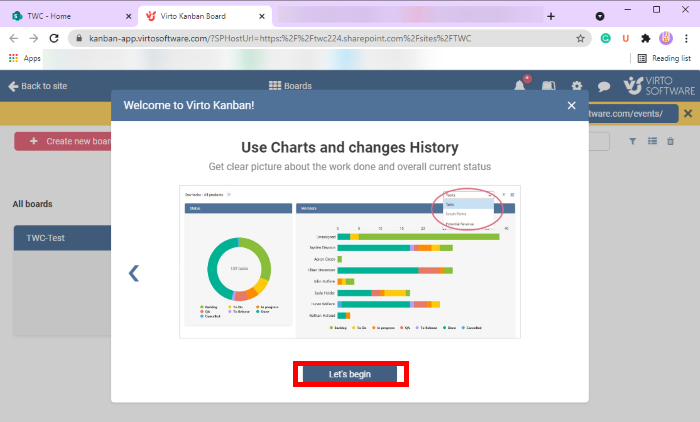
An overview of Virto Kanban Board will appear in a new browser tab. Select Let’s Begin.
Choose Create a new board > Quick Board, then give the board a name. The new board can be customized later.
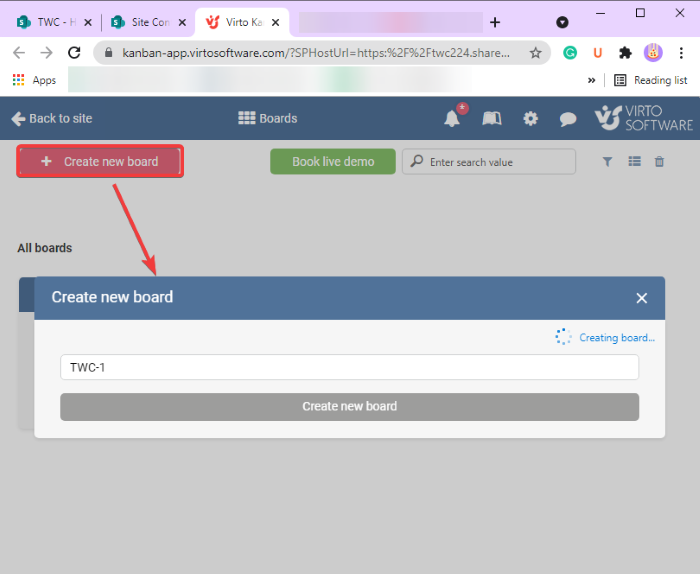
Add the board as a Teams tab
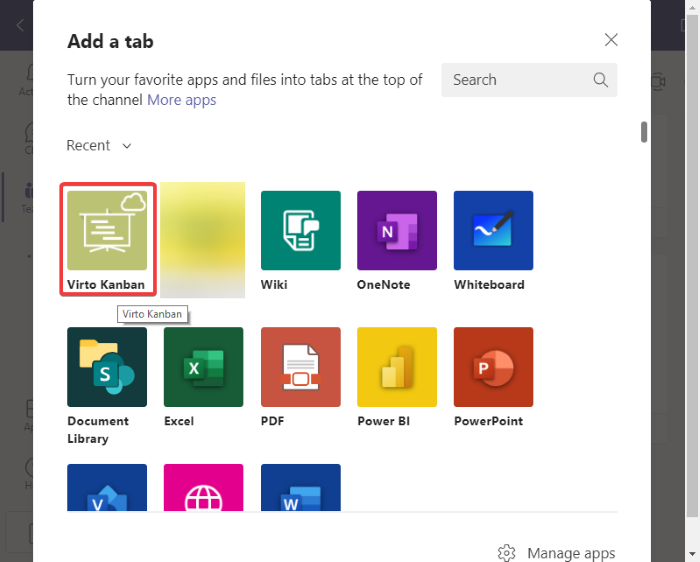
Return to Teams and open the team where you added Virto Kanban Board. Select the plus button at the top of the window, then choose the Virot Kanban Board app in the prompt.
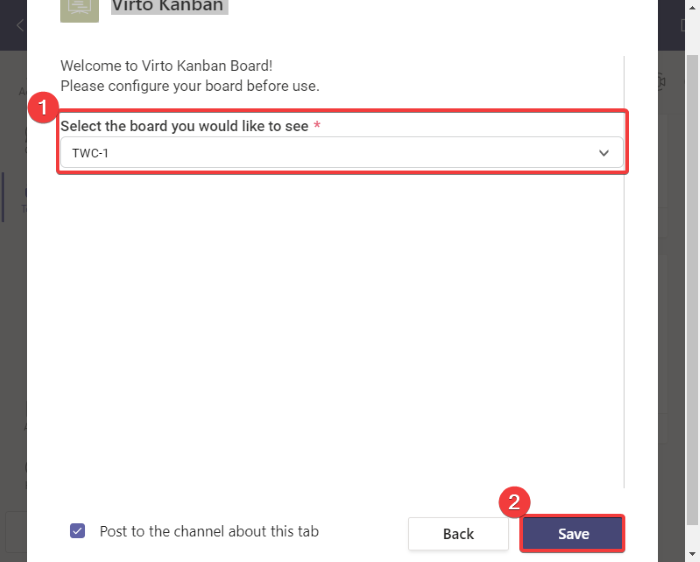
Select the board you previously created in SharePoint and choose Save.
Customize tasks and use board tools
Open the new Kanban board tab in your team to display the default board. To populate its cards, select Add task and enter the task’s name, task status, assigned to, due date, priority, description, and projects.
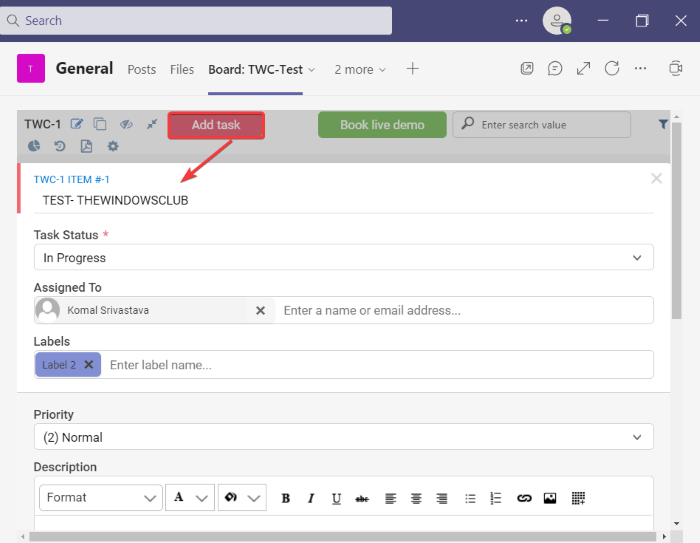
As a task’s status changes, drag and drop it from one card to another.
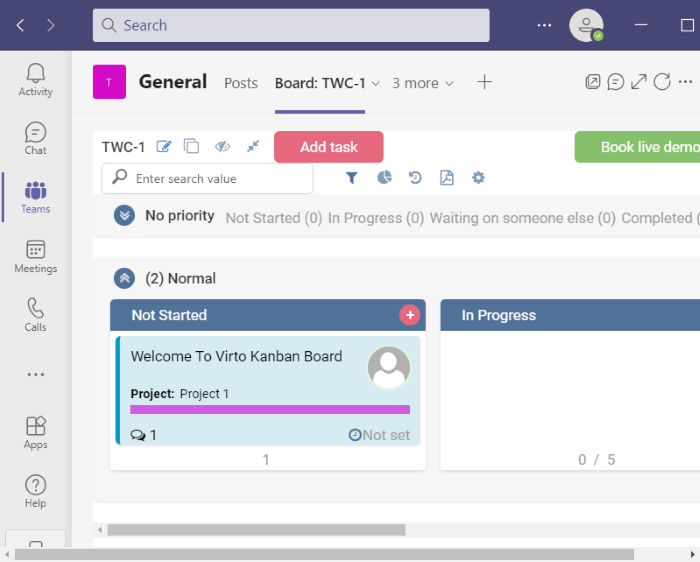
Filters let you narrow the displayed tasks by due date, assigned member, and other criteria. Additional tools allow you to show or hide empty swimlanes, copy the board link, and view history. You can also download the board as a PDF, which is saved in your Downloads folder.