Free monthly calendars for Google Sheets fall into two categories: static grids with manually entered dates, and dynamic grids that recalculate dates when you change a month or year setting. Neither is automatically the better choice; the right format depends on how you plan to use it.
Maintenance deserves attention. In a 2026 survey of 1,003 US operations professionals by DOSS, respondents reported spending 3.6 hours per week correcting spreadsheet errors. Manual entry was the most common error category, at 59%.
Quick Comparison of Free Monthly Calendar Templates
| Template | Best for | Rollover | Standout feature |
| Annual Calendar by Google | Anyone who wants a calendar in 30 seconds | Dynamic | Already inside Sheets, no download |
| Monthly Calendar by Vertex42 | Planning a full year at once | Dynamic | 12 month tabs, any year, Monday or Sunday start |
| Editable Blank Calendar by gdoc.io | Habit and task tracking | Dynamic | Month dropdown plus a completion graph |
| Automated Monthly Calendar by gdoc.io | Personal goals alongside dates | Dynamic | Side panel for goals and birthdays |
| Monthly Calendar with Notes by gdoc.io | People who write more than they schedule | Static | Dedicated notes column beside the grid |
| Google Sheet Calendar Planner Template by ClickUp | Color-coded team scheduling | Static | Preset category labels, no formatting needed |
| Digital Family Calendar by gdoc.io | Households sharing one schedule | Static | Built for several people in one grid |
| Monthly Content Calendar by gdoc.io | Blog and newsletter publishing | Static | Rows split by content type |
| Social Media Content Calendar by Vertex42 | Planning posts months ahead | Static | Long planning horizon, not just one month |
| Marketing Calendar by gdoc.io | Campaign scheduling | Static | Public holidays mapped against deadlines |
| Monthly Planner Template by ClickUp | Months that need owners and follow-up | Dynamic | Dates attached to assignable tasks |
| Calendar Planner Template by ClickUp | Running a calendar and a to-do list together | Dynamic | Same items in calendar and list views |
What to Check Before Choosing a Calendar
A reusable calendar should handle a month change without requiring a complete rebuild. Evaluate four things:
- Date rollover: Does one setting regenerate the dates, or must you enter them again?
- Writing space: Can each day accommodate the details you actually need?
- Google Sheets compatibility: Some advertised Sheets templates are Excel files whose formatting changes on import.
- License: Private-use restrictions may prevent client work or redistribution.
Check the format badges on Vertex42 in particular. Its Academic Calendar and Shift Work Calendar have XLSX badges only, despite appearing in other Google Sheets roundups.
Match the Template to Your Planning Needs
- Personal or household schedules: Templates #1, #4, and #7 offer straightforward monthly layouts. For daily habits rather than appointments, consider #3.
- Publishing and campaigns: Templates #8, #9, and #10 distinguish content formats or campaign work so you can assess timing across the month.
- Team coordination: Look for color categories and space for multiple daily entries, as in #6. The ClickUp alternatives add owners and statuses.
- Annual planning: Template #2 provides 12 months in one workbook; #1 offers a simpler built-in alternative.
Use the comparison table to check whether a template is static or dynamic. Dynamic dates reduce rebuilding when you intend to keep using the same file.
10 Free Monthly Calendar Templates for Google Sheets
1. Annual Calendar by Google
For a quick personal calendar, start in the Google Sheets template gallery. There is no external download or third-party file to check.
Open Sheets, click "Template gallery", and select "Annual Calendar". The workbook includes a full-year overview and separate monthly tabs with notes space. Changing the year setting regenerates the dates from January through December.
- Built directly into Sheets for a short setup process.
- Annual and monthly views in a single workbook.
- Year-driven dates rather than manually typed day numbers.
- Room for notes alongside the dates on each monthly tab.
Best fit: Individual planners who prioritize convenience. Choose another template if you need a particular layout or more deliberate visual design.
2. Monthly Calendar Template by Vertex42
Vertex42’s Monthly Calendar Template generates 12 worksheet tabs from one year setting. The source article describes it as the most fully featured dynamic calendar in this selection. It also lets you switch the week between Sunday and Monday starts.
This suits an office or operations manager setting up a year of holidays, payroll dates, and quarterly reviews. Select the year and week start, then add the recurring dates. Those entries stay in place while the year remains unchanged.
- One year setting populates all 12 monthly tabs.
- Monday or Sunday week starts require no grid rebuild.
- Portrait and landscape layouts support screen use and printing.
- Changing the year recalculates dates throughout the workbook.
Only the first template on the download page has a Google Sheets version, in portrait and landscape; the three variants below it are Excel-only. The license is for private use. Review Vertex42’s print/PDF exceptions before supplying it to a client.
Best fit: Annual planning where date handling matters more than appearance. Avoid it for unrestricted redistribution or client handoff. Its visual design was last updated in 2021 and looks dated.
3. Editable Blank Calendar by gdoc.io
The Editable Blank Calendar uses daily checkboxes, a month dropdown, and a small chart showing completed, canceled, and upcoming items. It functions more like a daily task scorecard than an appointment book.
Use it for recurring actions such as workouts, medication, studying, or client check-ins when completion matters more than the time of day. Its graph makes the monthly completion rate visible without requiring you to build a formula, while daily checks reveal streaks and missed periods.
- Daily checkboxes support repeat-action tracking.
- A single dropdown changes the month without duplicating tabs.
- The chart summarizes progress visually.
- The layout omits assignees and priority columns.
The source article credits the completion graph with helping the template rank near the top of Google results for this search.
Best fit: Habits and daily streaks. For several unrelated appointments on one day, #5 or #7 is more suitable.
4. Automated Monthly Calendar by gdoc.io
The Automated Monthly Calendar combines a single-month grid with a sidebar for plans, goals, and birthdays. Its white-and-blue layout uses the Nunito typeface and works on screen or in print.
For students and freelancers, the advantage is seeing monthly commitments and broader priorities together. Goals need not be squeezed into dated cells, and recurring annual dates remain outside the grid when the month is rebuilt.
- A side panel keeps goals, plans, and birthdays visible.
- The month and its priorities share one screen.
- Annual dates remain separate from the changing calendar cells.
Best fit: Personal planning that combines dates with goals. It displays only one month; planning a quarter requires moving between copies. Choose #2 for 12 months in one workbook.
5. Monthly Calendar with Notes by gdoc.io
The Monthly Calendar with Notes places a dedicated notes column beside the monthly grid. That separation gives undated information a home.
A team lead can put deadlines on the calendar while keeping risks, follow-ups, and unresolved decisions in the column. The context remains visible after individual dates pass instead of disappearing with notes placed in an expired day cell.
- Use the grid for dated commitments.
- Keep decisions, risks, and follow-ups in the adjacent column.
- Retain planning context without overloading daily entries.
Best fit: Monthly plans that need background information as well as deadlines. For printing on letter paper, the notes column leaves a narrow grid; #1 or #6 prints more cleanly.
6. Monthly Calendar Template by ClickUp
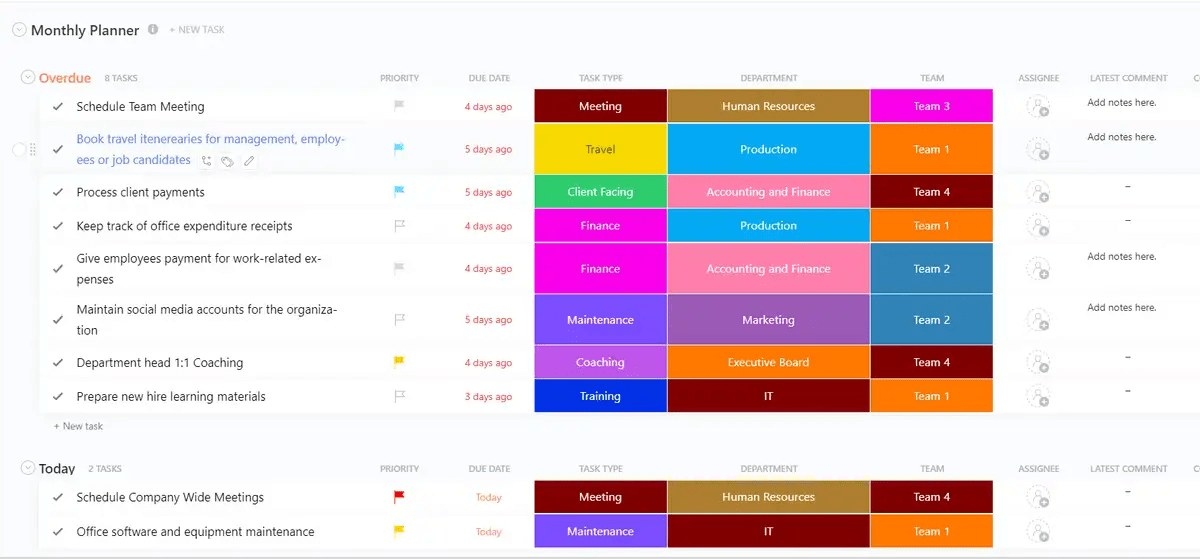
The Google Sheet Calendar Planner Template by ClickUp supplies a monthly grid with preset color-coded category labels. It suits small teams with several types of work landing on the same day.
Each day can hold two or three entries, and the colors make the week easier to scan. Because the category formatting is already prepared, you do not have to create conditional-formatting rules before getting started.
- Ready-made labels simplify category-based color coding.
- Daily cells accommodate multiple entries.
- A shared grid gives a small team one reference point.
- Open the template, copy it, and enter your plans.
Best fit: Shared monthly schedules organized by work category. This is a static grid: starting another month requires duplicating the tab. Use #1 or #2 for automatic date rollover.
7. Digital Family Calendar by gdoc.io
The Digital Family Calendar brings appointments, school activities, errands, and recurring household commitments into one shared layout.
Parents can coordinate pickups, practices, appointments, and home visits without exchanging separate messages or forwarding invitations. Everyone accesses the same Google Drive file, including from a phone, rather than maintaining individual copies.
- A shared household grid accommodates several people’s activities.
- One file keeps appointments and everyday logistics together.
- Family members can check it from any device without installing anything.
Best fit: Households already using Google Workspace and willing to check the sheet regularly. Unlike a calendar app, it does not notify family members about approaching events. Pair it with Google Calendar for time-sensitive commitments.
8. Monthly Content Calendar by gdoc.io
The Monthly Content Calendar organizes publishing by content type. Blogs, newsletters, social posts, and other formats appear separately so gaps and crowded dates stand out.
For a solo marketer or two-person content team, this makes cadence easier to assess than a task list. A blog post and newsletter clustered on Tuesday, followed by empty days, become immediately visible.
- Content-type rows distinguish formats.
- A monthly overview exposes publishing gaps and clusters.
- Several channels can be planned together rather than in separate trackers.
Best fit: Editorial scheduling across two or three channels. There is no status field for approval stages; #9 or the ClickUp alternatives are presented as better workflow options.
9. Social Media Content Calendar by Vertex42
Unlike the other content templates here, Vertex42’s Social Media Content Calendar supports planning months ahead. It can hold a quarter or more of posts around launches, conferences, and seasonal campaigns.
That longer horizon helps you schedule early supporting content while keeping later campaign milestones visible, rather than working from isolated monthly files.
- Plan a quarter or longer in one spreadsheet.
- Place campaign milestones first, then schedule surrounding posts.
- Coordinate social platforms across the same extended view.
- Choose Google Sheets or Excel from the same download page.
Best fit: Multi-month social and campaign planning. This is a planning spreadsheet, not a conventional monthly grid. Vertex42’s private-use license also applies, so check its terms before sharing externally.
10. Marketing Calendar by gdoc.io
The Marketing Calendar places public holidays alongside campaign deadlines. This helps reveal holiday conflicts while you are still choosing dates for emails, launches, and events.
Seeing those dates during planning avoids relying on memory or consulting a separate holiday reference. The source article warns that discovering a poorly timed send only after weak open rates can cost a send and a week of momentum.
- Public holidays appear with campaign commitments.
- Potential conflicts are visible before work goes live.
- Sends, launches, deadlines, and supporting activities share a monthly view.
Best fit: Campaigns in a market with many holidays. The holiday list covers one region; maintaining separate versions for several countries undermines the convenience. For that situation, consider a tool with multi-region calendar support.
Task-Based Alternatives to a Spreadsheet Calendar
Sheets is useful when one person maintains a planning document or a team consults it. ClickUp templates add a task layer for months that require assignees, statuses, reminders, and recurring work.
11. Monthly Planner Template by ClickUp
The Monthly Planner Template connects dates to tasks with owners and statuses rather than spreadsheet cells. As task dates change, the calendar changes with them.
For a shared schedule that repeatedly falls out of date, assigning a responsible owner to each item can reduce cleanup. Dated tasks appear in the appropriate month automatically: dynamic Sheets templates address rollover with formulas, while this template addresses it through tasks.
- Named owners establish responsibility.
- Statuses distinguish planned, active, and completed work.
- Task dates determine the month automatically.
- Deadline reminders provide notifications that the Sheets templates do not offer natively.
Best fit: Shared plans where each item needs an owner and status. It is less suitable for a printable wall calendar or an established Sheets-only workflow. Moving from a simple grid involves a learning curve, and a personal spreadsheet is quicker to set up.
12. Calendar Planner Template by ClickUp
The Calendar Planner Template adds a connected to-do-list view to the calendar. You can set deadlines in the monthly grid and work through a prioritized daily list without maintaining separate documents.
Both views use the same data. Completing an item in the list updates the calendar, while its owner, status, priority, and notes remain attached across views.
- Use the calendar for monthly planning and the list for daily execution.
- Avoid manually synchronizing two planning documents.
- Keep task details available in either view.
Best fit: People currently maintaining both a monthly calendar and a task list. If you only need a month grid, #1 or #6 offers a faster, simpler start.
Choosing Your Starting Template
| If you need to… | Start with |
|---|---|
| Get a calendar working in under a minute | Annual Calendar by Google |
| Map an entire year in one sitting | Monthly Calendar by Vertex42 |
| Track a daily habit and see the streak | Editable Blank Calendar by gdoc.io |
| Keep undated context next to dated work | Monthly Calendar with Notes by gdoc.io |
| Share one month across a small team | Monthly Calendar Template by ClickUp |
| Coordinate a household | Digital Family Calendar by gdoc.io |
| Plan publishing across channels | Monthly Content Calendar by gdoc.io |
| Give every item an owner and a status | Monthly Planner Template by ClickUp |
Build a Monthly Calendar in Google Sheets
A formula-driven, seven-column grid can recalculate when you change its month setting. Allow about 15 minutes for this setup.
- Put the first date of the month in B1, such as
2026-10-01
. The other dates will depend on this cell. - Enter Sunday through Saturday across A2:G2. Choose your week start now: the next formula depends on whether you use Sunday or Monday.
- Enter
=SEQUENCE(6,7,$B$1-WEEKDAY($B$1,1)+1,1)
in A3. It generates six rows and seven columns of consecutive dates, beginning with the Sunday before the month starts. - Display only day numbers in A3:G8 using Format → Number → Custom → d. Some cells will belong to the preceding or following month.
- To fade those overflow dates, select A3:G8 and open Format → Conditional formatting → Custom formula. Enter
=MONTH(A3)<>MONTH($B$1)
and choose a light grey text color. - Merge or widen rows below each date row to create writing space. Keep event notes out of the formula cells: changing the month overwrites anything entered in A3:G8.
Updating B1 redraws the calendar.
Keep the Calendar Useful After the First Month
Ongoing maintenance, not the initial layout, often determines whether a spreadsheet calendar lasts. Review these four issues:
| Issue | Question | Action |
|---|---|---|
| Responsibility | Who corrects inaccurate entries? | Assign one person to maintain the calendar. |
| Month rollover | What happens when the next month begins? | Use a dynamic template or schedule a recurring reminder to duplicate the tab. |
| Competing versions | Are copies circulating in chat? | Remove the copies and share a single link. |
| Notifications | How will people know a deadline is approaching? | Put notification-dependent deadlines on another platform with reminders; Sheets will not send them. |
A July 2025 survey of 500 US professionals by Parseur and QuestionPro found respondents spent more than nine hours weekly transferring data manually among emails, PDFs, spreadsheets, and other systems. The study estimated an annual cost of roughly $28,500 per employee. A monthly calendar is only part of that workload, but dynamic dates remove one manual-entry task.
Structure can still justify the effort. Cal Newport, Georgetown University computer science professor and author of Deep Work, estimates that a structured, time-blocked 40-hour week can produce as much output as an unstructured week exceeding 60 hours.
Google Sheets or ClickUp?
A calendar maintained by one person is straightforward in Sheets, and shared viewing works well for two or three readers. Shared editing brings more difficulty: the source article notes the lack of cell-level ownership and date-change notifications, and the difficulty of tracking who moved an entry. A grid can appear current even when a change has been missed.
ClickUp attaches an owner, status, and reminder to each dated task. That may be unnecessary for personal planning, but it adds accountability when several people edit the same month. Changes have a responsible person, and deadlines can notify that person rather than remaining silent in a cell.
Test Rollover Before Committing
In a copy of the template, change the month or year. Check whether the dates regenerate and whether your entered notes survive. This roughly 30-second test is more useful than relying on a template’s description.
Choose dynamic dates for repeated use of the same file. A static grid can work well when you print, archive, and start fresh. Consider ClickUp when entries need ownership and reminders.
Frequently Asked Questions
Is a calendar template included in Google Sheets?
Yes. In the Google Sheets template gallery, select "Annual Calendar" for an annual overview and monthly tabs with notes space.
Which free templates offer dynamic dates?
Google Annual Calendar, Vertex42’s monthly calendar, and the Editable Blank Calendar from gdoc.io are candidates. Dynamic templates regenerate dates after a month or year change, but verify that behavior in your own copy.
Can a Sheets calendar send reminders?
Not natively: a date in a cell does not trigger a built-in reminder. You need Apps Script or a connected tool. The source article identifies this limitation as the most common reason people abandon spreadsheet calendars.
How does a Sheets calendar differ from Google Calendar?
Sheets gives you a freely customizable grid. Google Calendar provides scheduling features such as invitations, reminders, and time zones. Choose Sheets for a custom layout and Google Calendar when scheduling involves other people’s time.
How can I edit a view-only template?
Choose File > Make a copy to create an editable version. Google’s Template Gallery creates a copy automatically. Leave the provider’s original intact and observe its license.
How do I fit a monthly calendar onto one printed page?
Select the calendar range and choose File > Print > Selected cells. Set the paper size and orientation to suit the layout, then adjust margins and page breaks until the preview shows one readable page.
Can the week begin on Monday?
Yes. Use a week-start setting if the template provides one. For a formula-based calendar, update both the weekday headings and the date offset. In Google Sheets,
WEEKDAY(date,2)uses Monday as day one. Changing only the headings leaves dates under incorrect weekdays.
How can I enter multiple events on one date?
Choose a template with separate daily input rows, or insert line breaks within a cell using Ctrl+Enter (Cmd+Enter on Mac). Enable Format → Wrapping → Wrap and increase row height to show all entries. Never overwrite formula-generated dates.
How do I protect formulas while allowing event edits?
Leave entry cells editable and protect the formula ranges. Open Data → Protect sheets and ranges, select the date cells, and configure editing permissions. A warning by itself does not block changes.