Moving everything you need to do into a productivity system can clear your head, but a long task list can still feel overwhelming. Choosing what to tackle may start consuming time you could spend doing the work.
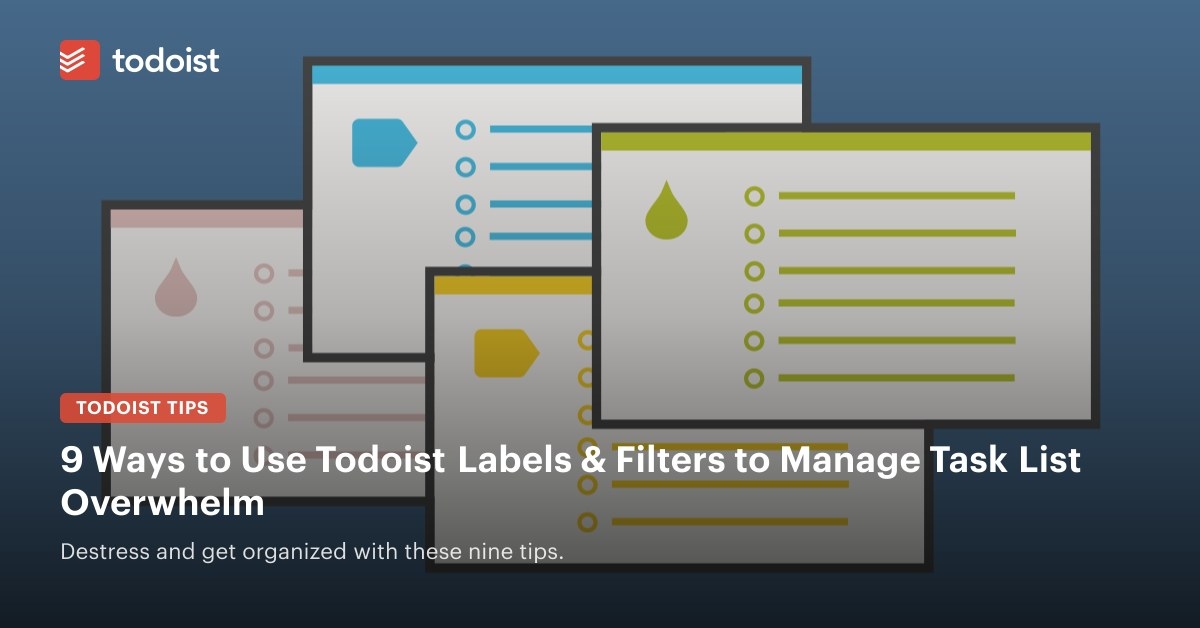
Todoist labels and filters help by showing tasks that suit your current circumstances. Setting up a useful system takes time initially, but can make later decisions easier. Apply only the labels that matter to each task—you do not need every category below.
1. Identify tasks awaiting someone else
Some work cannot proceed until another person provides feedback or completes an action. Labeling these dependencies makes it easier to spot where a follow-up is needed rather than relying on others to remember.
Review your waiting tasks at least weekly, or create subtasks reminding you when to follow up if no response arrives.
2. Mark the next action for each project
A next action is the immediate step that moves a project forward. For a blog post due in 3 days, that might be creating its featured image rather than completing the whole post.
Use a “Next action” label and review those tasks daily or weekly. Add a due date and time when you are ready to schedule the work.
3. Match tasks to your energy
The author credits Mike Vardy of Productivityist.com with the advice to choose work that suits what you feel like doing.
Labels such as “low” or “high” energy let you filter by the effort required. On a low-motivation Friday afternoon, completing a few “low energy” tasks can still be useful progress.
Productivity does not always require tackling demanding projects. If limited energy would lead to poor results, save “high energy” work for a time when you can do it better.
4. Choose work that fits your available time
Time-based labels help you find work that fits a 15-minute gap before a meeting or the hour remaining in your day. Start with your best estimate of each task's duration; accuracy should improve with practice. When uncertain, overestimate rather than assume a task will be quick.
For a 15-minute opening, check tasks labeled “5_minutes” or “Quick_Win”. Examples include:
- Call Jane to discuss the budget.
- Schedule this afternoon's Tweets.
- Email James about the weekend.
5. Filter by the device you have
Device labels can separate work suited to a computer from tasks you can handle on a phone or tablet while traveling or commuting. Returning calls, scheduling appointments, and catching up on reading can fit mobile use. Leave blog posts and lengthy emails for the computer, while calls and social media posts can be handled on the go.
To collect tasks labeled “low energy”, “5 minute” or “phone”, create a filter with the query “@phone | @5_minutes | @low_energy”. This brings together tasks bearing at least one of those labels; it does not require all three.
6. Label work that requires a particular location
Location labels are useful when a task genuinely depends on being somewhere. You might check “@errands” while out and about, or use “@office” for work that can only happen at the office.
Do not add a location unnecessarily. An email you can write anywhere does not need “@office”; reserve location labels for tasks requiring a visit to the bank, post office, or a weekly meeting.
7. Keep discussion items together by person
Person-based labels are more specific than a general “@waiting” list. They let you gather questions and follow-ups for the next conversation with someone.
You need not create a label for every colleague. A label such as “@manager” can hold everything to discuss with your boss, separately from general waiting tasks, so you can cover all your questions when you meet.
8. Group similar kinds of work
Labels for email, writing, editing, errands, analytics, reporting, or creative work let you choose a suitable type of task and work through similar items together.
Frequent changes of activity require mental shifts that can interrupt your flow and slow progress. Instead, you could spend a few morning hours writing, then handle email later.
9. Find tasks you can do offline
An “@offline” label makes it easy to find work that does not require an Internet connection. This is especially useful while traveling, including on a flight, when you can focus without distractions such as Twitter or Netflix.
Create labels and saved filters
Enter “@your_label_name” directly in a task name to add a label. Todoist's intelligent Quick Add recognizes it and applies it to the task. To see tasks sharing that label, open your label list and click the relevant label.
For a saved search, open the “Filters” tab, add a new filter, and enter your query. For example, “(overdue, 7days) & @writing” is the supplied query for finding writing tasks due in the next week. Clicking that filter displays tasks labeled “@writing” due in the next 7 days; the query also includes overdue items.
The help center article offers further filter possibilities.
Resource: Personal Productivity Toolkit.