If a program window in Windows 11/10 minimizes unexpectedly and clicking its taskbar icon will not restore or maximize it, try the following troubleshooting options in order.
Restart File Explorer
Restart File Explorer, then check whether the affected window opens normally.
Check for malware
Run a scan with your antivirus software. The free Microsoft Safety Scanner is another option for detecting and removing malware, and it can work alongside your existing security software.
Microsoft Safety Scanner expires ten days after download. Use it within that period; if it has expired, download it again before scanning.
Test in a Clean Boot State
Perform a Clean Boot and check whether the issue persists. A clean boot starts the computer with a minimal, preselected set of drivers and startup programs, so some applications may not behave as usual.
This troubleshooting process helps isolate the source of a performance problem. Restart after each change, disabling items individually if necessary to identify the cause. Once you find the responsible item, remove or disable it.
Run an SFC scan in Safe Mode
Use this sequence to enter Safe Mode in Windows 10 and run the scan:
- Restart the computer. At the sign-in screen, use Shift key+Power button, then select Restart.
- After the restart, select Choose an option, followed by Troubleshoot.
- Go to Advanced Options > Startup Settings > Restart.
- From the options displayed, choose Safe Mode to start Windows 10.
- Click Start and search for CMD. Right-click CMD and choose Run as administrator.
- Enter “sfc /scannow”, press Enter, and allow the scan to finish.
- Restart the computer and check whether the problem is resolved.
Disable Tablet Mode
If you use Tablet Mode, this built-in feature may be associated with the problem. To turn it off, click the Notification icon on the taskbar and deselect Tablet Mode.
Try additional window-restoration methods
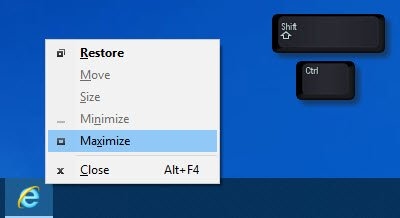
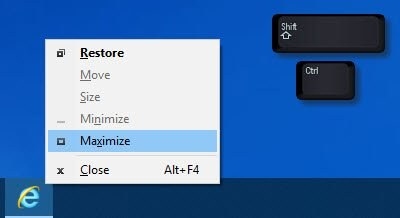
- Hold Shift+Ctrl, right-click the application's taskbar icon, and choose Restore or Maximize rather than double-clicking the icon.
- Right-click the desktop, select Refresh, and check the result.
- Use Win+M followed by Win+Shift+M to minimize and then maximize all windows.
- Try WinKey+Up/Down arrow key.
- Press Alt+Space. If the menu containing Maximize/Restore/Minimize appears, use its options.
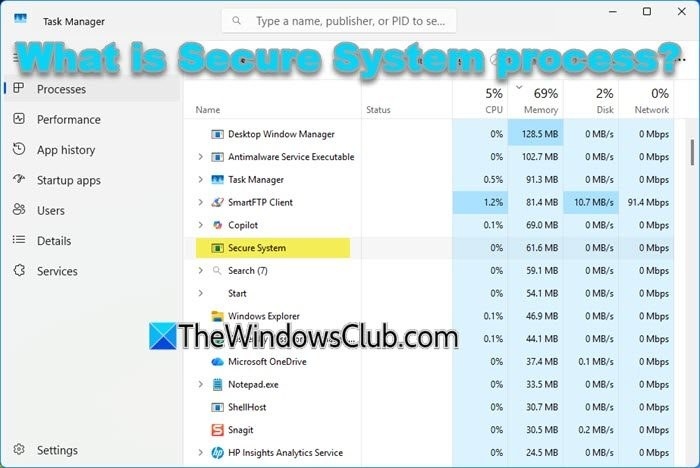
- Finally, open Task Manager, end the program's process, and launch the program again.
If the taskbar itself cannot be clicked
If you cannot click the taskbar or launch apps from it, try these suggestions in the following order:
- Restart File Explorer.
- Re-register Taskbar using PowerShell.
- Run Windows Troubleshooters.
- Run DISM to Restore System Health.
- Check Graphics Drivers.
- Perform System Restore.
- Create a New User Account.